PLAIN-LANGUAGE INVOICING · ANDROID
Describe the work.
Start the invoice.
You already know what happened on the job. Put it into a clear transaction description instead of starting with document formatting. Quotavani uses that typed instruction to prepare an invoice draft for you to check.
Free to join · No payment or Google account needed to subscribe.
Android availability updates; no public app download is offered here yet.
Start with the customer, item and quantity
A CLEAR NEXT STEP
A useful instruction starts with three things: who, what and how much.
- 01
Name the customer.
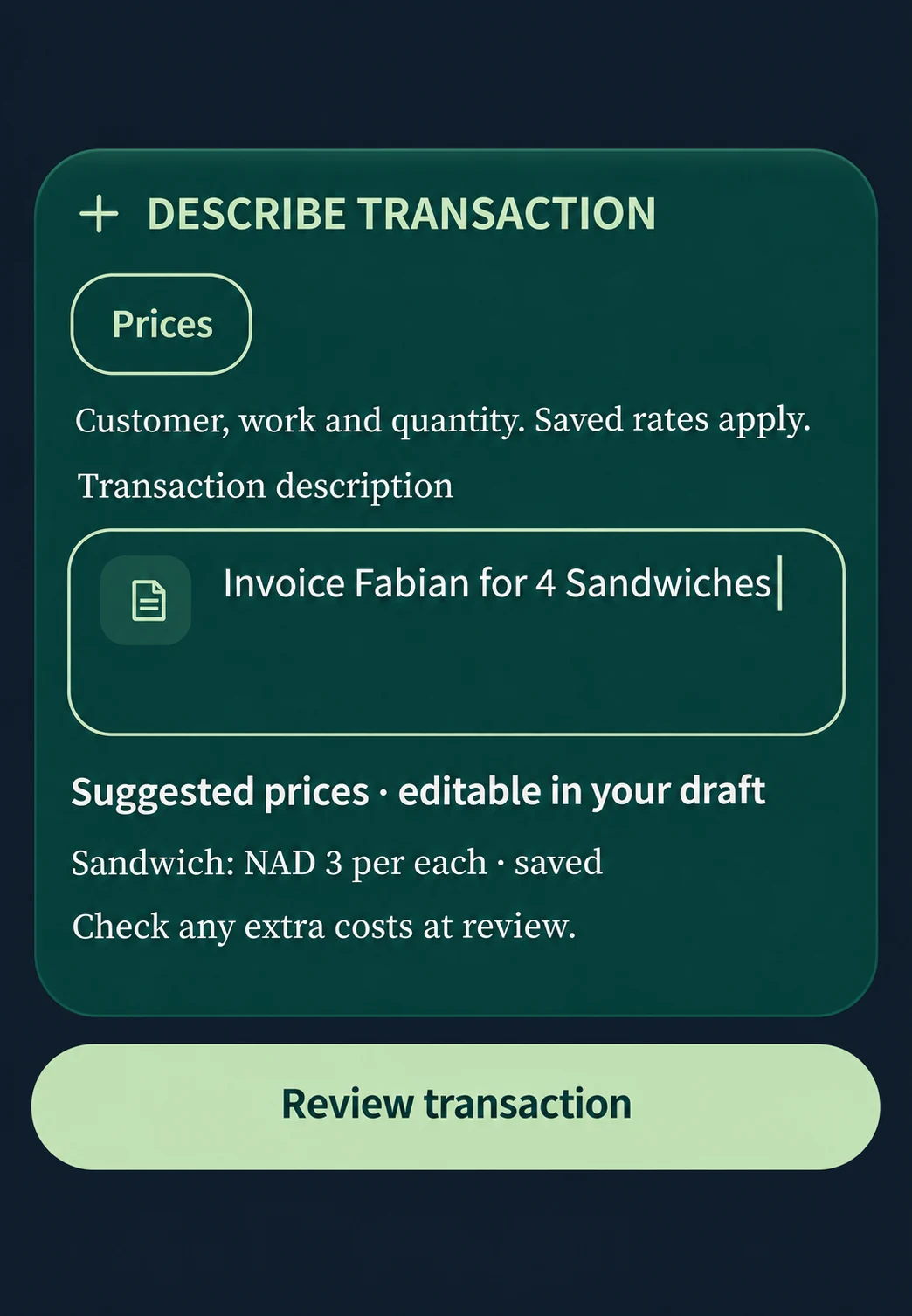
Use the customer’s name clearly. Our app example starts with “Invoice Fabian”. Confirm the selected customer before generating anything.
- 02
Say what you supplied.
The instruction continues “for 4 Sandwiches”. For a service job, describe the service and number of visits or hours. Add agreed prices and units where needed.
- 03
Resolve the details in the draft.
Check that each quantity uses the right unit. Review suggested or saved rates, extra costs and any tax. Finish the review before generating the invoice.
“Invoice Fabian for 4 Sandwiches.”
One sentence gives Quotavani the customer, item and quantity. Our website preview recreates the app screen so you can follow the process. In the Android app, review any saved prices suggested in the draft and use the rate agreed with your customer before generating the invoice.
Give the pricing calculator the right unit.
Four sandwiches, three hours and ten bags are different quantities. Include the unit you actually charge for, and distinguish a unit rate from a line total. If you want to check the arithmetic first, the free browser pricing calculator lets you enter descriptions, quantities and rates without an account or customer details.
Write a little more when the job needs it.
For a repair, separate labour, parts and travel rather than hiding them in one vague phrase. For small businesses and trades, a specific description makes an invoice easier for the customer to recognise. Quotavani’s billing generator prepares the draft; you decide whether its wording and amounts accurately reflect what was supplied.
LOOK BEFORE YOU JOIN
See the output.
Check the fit.
Open a PDF made in Quotavani or try the free calculator. No signup needed.
Do I need special commands?
Use a clear typed description of the customer, work and quantities. Include prices and units when relevant. Add any missing details when you review the draft.
Are saved prices final?
No. Review any suggested or saved rate in the draft, along with extra costs, currency and tax. A saved rate may not match the current agreement.
Can the customer read my original instruction?
Review the generated PDF to see the actual document content before sharing it. The sample PDF linked below is a separate app-generated example, not a matching output for this transaction.
Does joining the launch list require Google sign-in?
No. The website launch form needs an email address and explicit consent. Joining does not install the Android app or activate a subscription.
WHEN IT FITS YOUR WORK
Keep the next step simple.
Leave your email for Android launch updates. Choose to hear from us, and unsubscribe any time through your private link.
Get launch updatesThis list is for updates. App access and paid subscriptions are separate.